Taking notes during a lecture is a losing battle. Your professor speaks at 150 words per minute. You write at 30. By the time you finish writing one point, you have missed four. AI note-taking tools close this gap by recording, transcribing, and summarizing lectures in real time so you can focus on understanding instead of frantically scribbling.
This guide covers the best AI tools for capturing lectures, how to build a complete note-taking system using free tools, and the post-lecture review workflow that turns raw transcripts into exam-ready study material.
Every tool has a free tier sufficient for regular student use. No paid subscriptions required to start.
AI Note-Taking Tools Compared
| Tool | Best For | AI Features | Free Tier |
|---|---|---|---|
| Otter.ai | Live transcription | Real-time transcript, speaker ID, auto-summaries | 300 min/mo |
| NotebookLM | Post-lecture analysis | Source-grounded Q&A, audio overviews, study guides | Generous free |
| Notion AI | Organization | Summarize pages, generate action items, search across notes | Limited AI |
| Tactiq | Zoom/Meet classes | Live captions to transcript, AI meeting notes | 10 transcripts/mo |
| Microsoft OneNote + Copilot | Microsoft ecosystem | AI summaries, rewrite, organize within OneNote | With .edu email |
Otter.ai: Real-Time Lecture Transcription
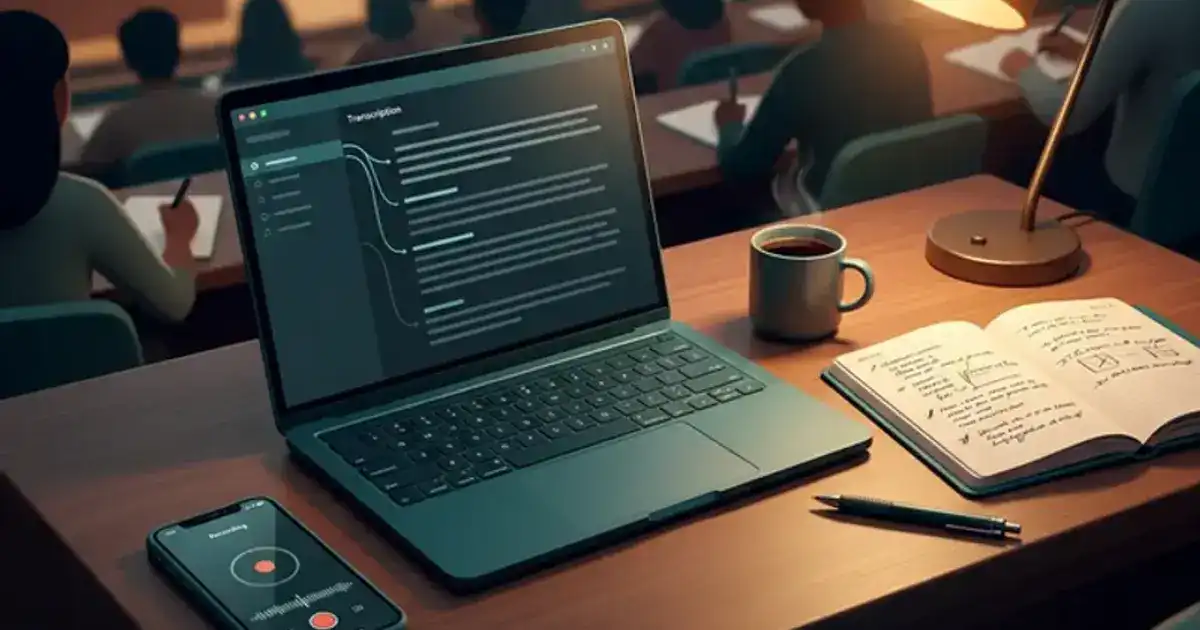
Otter.ai is the most popular AI transcription tool for students because it works in real time. Open the app on your phone or laptop at the start of class, press record, and Otter transcribes every word as it is spoken. By the time the lecture ends, you have a complete searchable transcript.
Speaker identification. Otter distinguishes between different speakers automatically. In a seminar-style class with discussion, each participant's contributions are labeled separately. This makes finding specific points from a class discussion dramatically faster than scrolling through a wall of undifferentiated text.
Auto-generated summaries. After recording, Otter produces an AI summary highlighting the key points covered. This 200-word summary becomes your quick-review document. Before the next class, skim the summary to recall the previous lecture's main ideas in under a minute. Students who review the previous lecture's summary before the next class report significantly better continuity and understanding of how topics build on each other.
Search across lectures. Every transcript is searchable. Studying for a midterm and need to find every time your professor mentioned "standard deviation"? Search the term across all your recordings. This is impossible with handwritten notes and unreliable with manual digital notes. Searchable transcripts transform your entire semester of lectures into a personal database you can query at any time.
Free tier limitations. The free plan provides 300 transcription minutes per month with a 30-minute limit per recording. For a typical 50-minute lecture, you will need to start a second recording partway through, or consider upgrading during exam season when you need more. The paid Pro plan ($10/month with student discount) removes these limits entirely, but the free tier works fine for most students who record only their most important classes.
NotebookLM: Turn Recordings Into Study Guides
NotebookLM is not a recording tool. It is what you use after recording. Upload your Otter transcript (or a lecture recording from your university's LMS) and NotebookLM turns it into a comprehensive study resource grounded entirely in the source material.
Source-grounded answers. Unlike ChatGPT, which draws from its general training data, NotebookLM only answers based on the specific documents you upload. This means no hallucinated information. When you ask "What were the three causes of the Great Depression mentioned in the lecture?" NotebookLM answers using only what your professor actually said, with inline citations pointing back to the exact moment in the transcript.
Audio overviews. NotebookLM generates podcast-style audio discussions from your uploaded content. Listen to these while commuting, exercising, or cooking. Hearing concepts discussed conversationally creates a different memory pathway than reading, which strengthens overall retention. Students who both read and listen to the same material remember more than students who only read.
Study guide generation. Ask NotebookLM: "Create a study guide from this lecture covering all key terms, main arguments, and potential exam questions." The output is a structured document you can use directly for exam review. Because it is grounded in your specific lecture content, it captures exactly what your professor emphasized rather than generic textbook definitions.
Cross-lecture connections. Upload transcripts from multiple lectures into the same notebook. Then ask: "How does the concept discussed in Lecture 5 relate to what was covered in Lecture 3?" NotebookLM identifies connections across your entire course that you might have missed in real time. These cross-lecture connections are exactly what cumulative finals test. Building them systematically throughout the semester eliminates the panic of trying to connect weeks of material the night before the exam.
Notion AI: The Organization Layer
Notion AI is not the best transcription tool or the best analysis tool. It is the best organization tool. Use it as the central hub where all your notes, transcripts, assignments, and study materials live in one searchable workspace.
The course dashboard. Create a Notion database with one entry per lecture. Each entry contains: the date, topic, key concepts, your edited transcript (or a link to the Otter recording), action items from the lecture, and questions you need to follow up on. This database becomes your semester-long reference. During exam prep, filter by topic or date range to surface exactly the material you need.
AI-powered summaries. Paste your raw lecture notes into a Notion page and use Notion AI to generate a concise summary, extract action items, or reformat messy notes into clean bullet points. The AI processes your specific content rather than generating generic summaries, making the output directly useful for study.
Template system. Build a lecture note template that includes sections for: main topic, key terms, open questions, connections to previous lectures, and follow-up tasks. Apply this template to every lecture and your notes follow a consistent, searchable structure throughout the semester. Consistency in note structure is one of the most underrated study strategies because it reduces the cognitive load of organizing information, freeing your brain to focus on understanding the content itself.
Building Your Free AI Note-Taking System
The best note-taking system combines capture, analysis, and organization. No single tool does all three well. Here is the free stack that covers everything:
During Class: Otter.ai (Capture)
Open Otter on your phone. Press record. Let it transcribe while you focus on understanding and writing brief margin notes about concepts that need deeper review. Your goal during class is comprehension, not transcription.
After Class: NotebookLM (Analyze)
Upload the transcript to NotebookLM within 24 hours. Generate a study guide, ask questions about anything confusing from the lecture, and create flashcard-worthy concepts. This 15-minute session cements the lecture while it is still fresh.
Weekly: Notion (Organize)
Add the lecture summary and key concepts to your Notion course dashboard. Tag topics, link related lectures, and note any open questions. Your organized database becomes exam prep gold when finals arrive.
Want to turn lecture notes into flashcards?
Our AI flashcard guide covers Quizlet, Anki, and ChatGPT-generated cards with spaced repetition.
Read the Flashcard Guide →Tactiq and OneNote: The Alternatives
Tactiq for online classes. If most of your lectures happen on Zoom or Google Meet, Tactiq is built specifically for this. It captures live captions from video calls and converts them into transcripts with AI-generated summaries. The free tier gives you 10 transcripts per month, which is enough for 2-3 online courses. Where Tactiq shines is its one-click export: after a lecture, export the transcript directly to Google Docs, Notion, or your note-taking app of choice.
Microsoft OneNote with Copilot. For students whose university provides Microsoft 365 Education (most do through .edu email), OneNote with Copilot adds AI capabilities directly inside your existing notes. Copilot can summarize pages, rewrite sections for clarity, and generate to-do lists from your notes. The advantage is zero friction if you are already in the Microsoft ecosystem. You do not need a separate tool. The limitation is that Copilot's AI features are less specialized for academic use compared to NotebookLM.
When to use each alternative. Choose Tactiq if 80% or more of your classes are virtual. Choose OneNote with Copilot if your university provides Microsoft 365 and you want everything in one tool with minimal setup. Choose the Otter plus NotebookLM stack if you want the most powerful combination and do not mind using two tools.
What to Do During Lectures (With AI Running)
When AI handles transcription, your job during the lecture changes completely. You are no longer a court reporter. You are an active listener whose goal is comprehension, not documentation.
Write questions, not facts. Instead of copying what the professor says, write down questions that occur to you: "Why does this formula use natural log instead of log base 10?" or "How does this connect to last week's framework?" These questions will guide your post-lecture review and become prompts for your AI study session. Questions are more valuable than copied facts because they indicate the edges of your understanding.
Star confusing moments. When the professor says something you do not understand, drop a timestamp marker in Otter (tap the highlight button) or write "CONFUSED - 10:23am" in your notebook. After class, go directly to these moments in the transcript and use ChatGPT or NotebookLM to clarify. This targeted review is dramatically more efficient than re-reading the entire lecture transcript.
Sketch visual explanations. AI transcription captures words but not diagrams, charts, or whiteboard drawings. When the professor draws something, sketch it in your notebook. These visual elements are often the most exam-relevant parts of a lecture because they illustrate relationships between concepts that words alone cannot convey. A quick sketch plus the AI transcript gives you complete lecture coverage.
Listen for emphasis cues. Professors signal what matters for exams: "This is important," "You will see this again," "The key distinction is..." When you hear these cues, highlight that moment in Otter or note it separately. AI transcription treats every sentence equally, but you know from context that some sentences are worth 10x more attention than others. Your human judgment about what the professor emphasizes is something no AI can replicate.
The Post-Lecture Review Workflow
Recording a lecture without reviewing it is like buying a textbook and never opening it. The real learning happens in the review phase, ideally within 24 hours while the material is still fresh.
Post-lecture review prompt:
"Here is the transcript from today's [subject] lecture: [paste transcript]. (1) Summarize the 5 most important concepts covered. (2) Identify any terms that were defined for the first time. (3) Generate 8 exam-style questions based on this material. (4) Flag anything that connects to material from previous lectures."
The 15-minute review session. Set a timer for 15 minutes after every lecture. Read through the AI summary, answer the generated questions without looking at the transcript, and note any concepts you cannot explain in your own words. These 15 minutes produce more retention than 2 hours of passive re-reading the night before the exam. The spacing effect means that reviewing material shortly after first exposure dramatically strengthens memory formation.
Edit the transcript. Resist the temptation to treat the raw transcript as finished notes. Spend 5-10 minutes cleaning it up: fix obvious transcription errors, add headings for major topic shifts, and bold key terms. This editing process forces you to reprocess the material, which doubles its value as a study resource. The transcript goes from a wall of text to a structured document you can actually navigate during exam prep.
Export to your study system. After editing, copy the cleaned transcript or summary into Notion, add it to your course dashboard, and tag it with relevant topics. Link it to related readings or previous lectures. This 3-minute export step connects each lecture into your growing knowledge network rather than leaving it as an isolated recording you will never revisit.
Note-Taking Mistakes to Avoid
Recording everything, reviewing nothing. The number one mistake. Students feel productive because they recorded the lecture, so they skip the review. An unreviewed recording has zero study value. It is worse than taking brief manual notes because at least manual notes require active processing during the lecture. If you will not review the recording within 48 hours, you might as well not record it.
Transcribing instead of listening. Some students open Otter and then continue taking manual notes word-for-word. This defeats the purpose. If AI is transcribing, your job changes to active listening. Write questions and connections, not facts. Your brain processes information far better when it is engaged with meaning rather than occupied with transcription.
Using AI notes as your only source. AI transcription captures approximately 90% of spoken words accurately. That missing 10% might include the most important nuances: a professor's aside about what will be on the exam, a correction to a previous statement, or a clarification prompted by a student question. Always supplement AI transcripts with your own observations during the lecture.
Skipping permission. Recording a lecture without the professor's knowledge or against university policy can lead to academic discipline, including failing the course in extreme cases. Many professors are comfortable with recording but want to be asked first. A simple "Professor, would you mind if I record lectures for my personal study notes? I will not share the recordings with anyone" is all it takes. Most will say yes immediately. The few who say no usually have concerns about intellectual property or student privacy that are worth respecting. Some professors will offer their own recordings or allow recording only with a formal accommodation letter from the disability services office. Never record without explicit permission.
The shift from manual to AI-assisted note-taking is not about replacing your engagement with the material. It is about redirecting your cognitive energy from transcription to comprehension. The students who get the most out of these tools are the ones who treat AI as a capture layer that frees them to think more deeply during the lecture itself, not less.
Try this system at your next lecture
Download Otter.ai on your phone before your next class. Record the lecture while focusing on questions and connections instead of facts. Within 24 hours, upload the transcript to NotebookLM and generate a study guide. The difference between this approach and your current note-taking method will be immediately obvious.